Task Management
Learn how to create, organise, and track tasks to keep your accounting practice running smoothly.
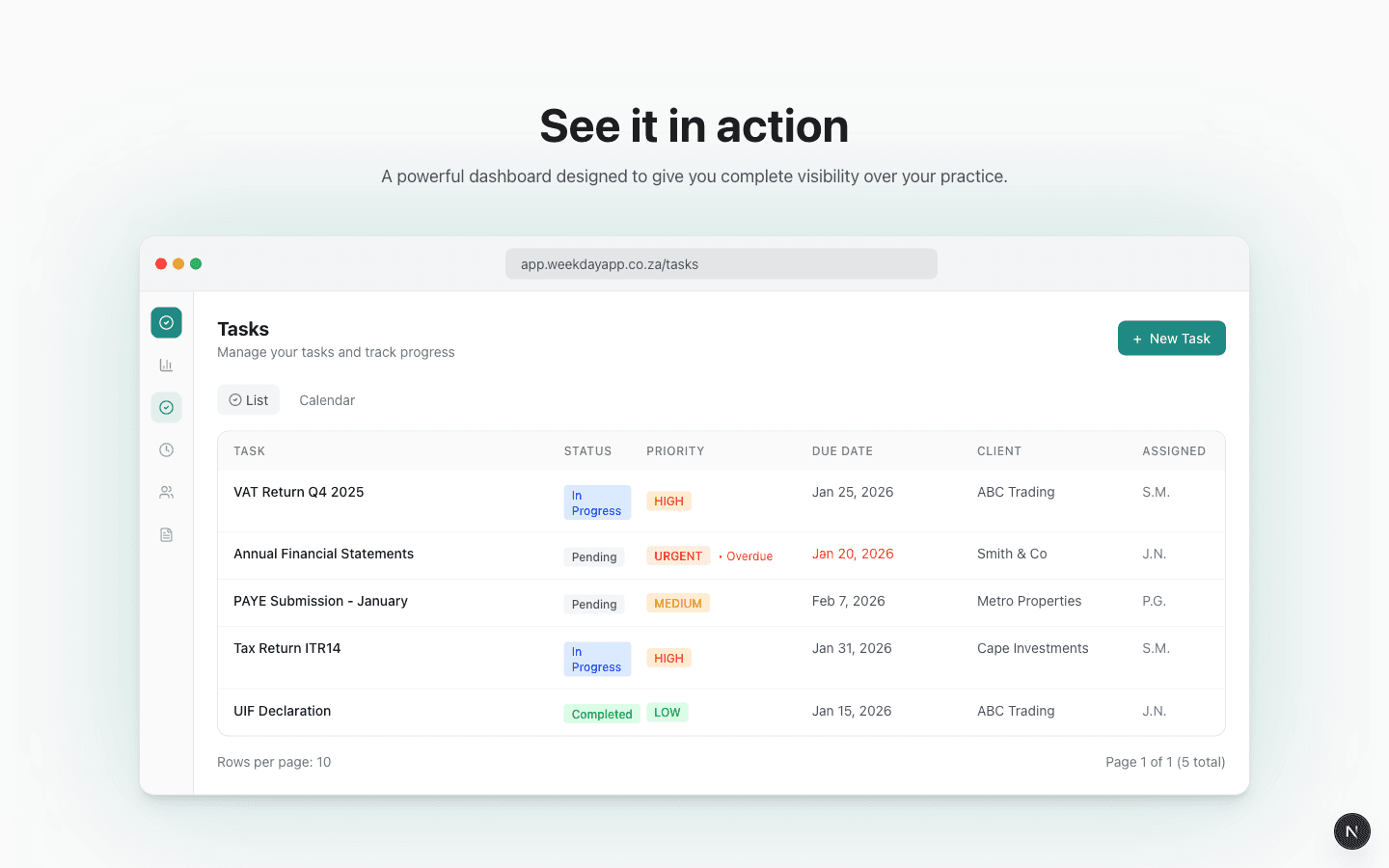
Creating tasks
- 1Navigate to Tasks in the sidebar
- 2Click the + New Task button
- 3Fill in task details: title, description, client, assignee, due date, and priority
- 4Click Create Task to save
Priority levels
URGENT
Critical tasks needing immediate attention
HIGH
Important tasks to complete soon
MEDIUM
Standard priority for most tasks
LOW
Tasks that can wait when time permits
Recurring tasks
Create templates that automatically generate task instances on a schedule — perfect for monthly bookkeeping, VAT returns, payroll, and other repeating work.
Setting up a recurring task
- 1Go to Tasks and click the Recurring Tasks tab
- 2Click + New Recurring Task
- 3Set the schedule: how often (every N days, weeks, months, or years), a start date, and either an end date or a duration in months (setting one clears the other)
- 4Assign a category, priority, client, and team member
- 5Click Create Recurring Task
How task generation works
- •Tasks are generated automatically every day at 8:00 AM SAST
- •The system creates tasks up to 30 days in advance by default (configurable in Settings → Tasks)
- •Generated tasks appear in your normal task list with the due date set to the scheduled date
- •When a recurring config reaches its end date, it is automatically deactivated
- •You can pause or resume any recurring task from the Recurring Tasks tab
Key features
Smart Filtering
Filter by status, priority, client, or assignee
Calendar View
See tasks by due date visually
Team Assignment
Assign tasks to team members
Notifications
Get alerts for due dates and updates
AI Priority
Auto-suggested priority levels
Time Tracking
Track time directly on tasks